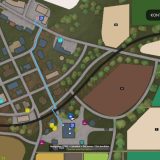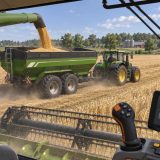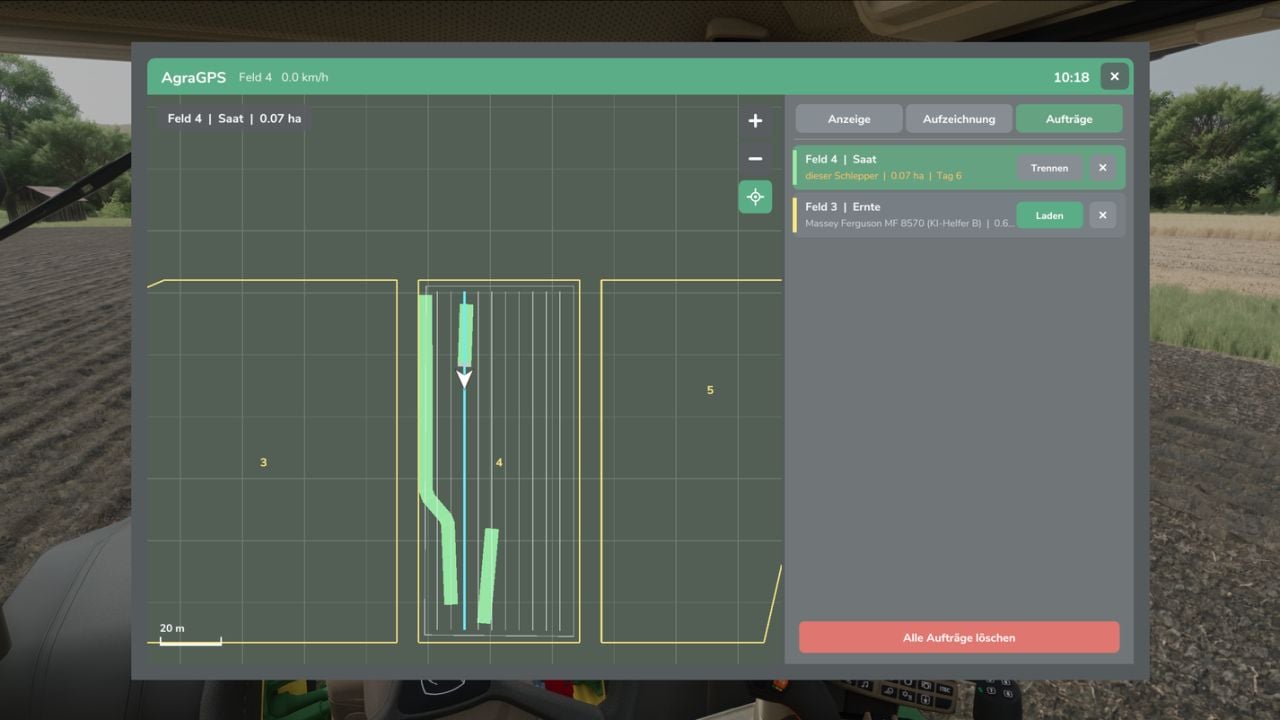
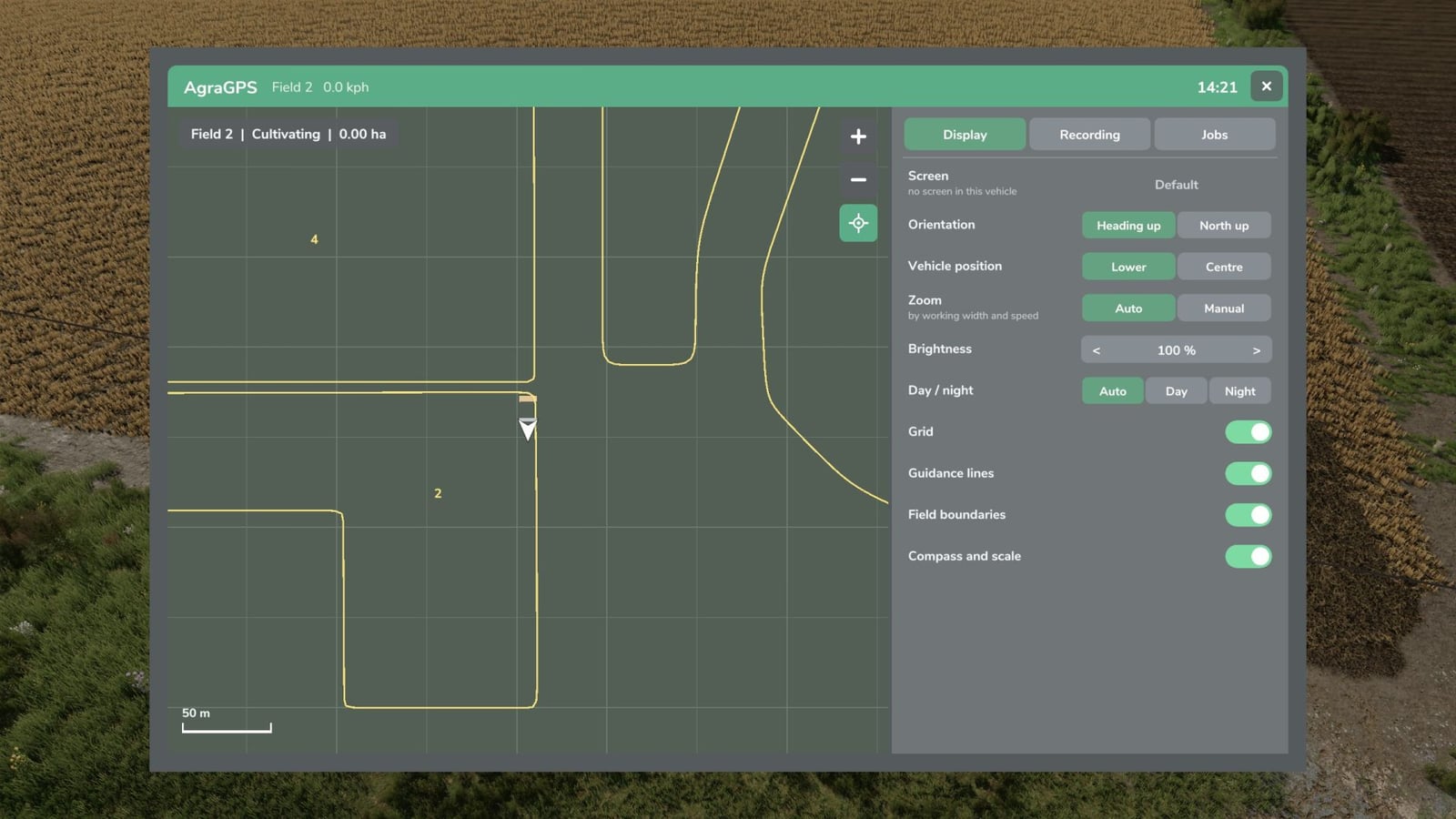
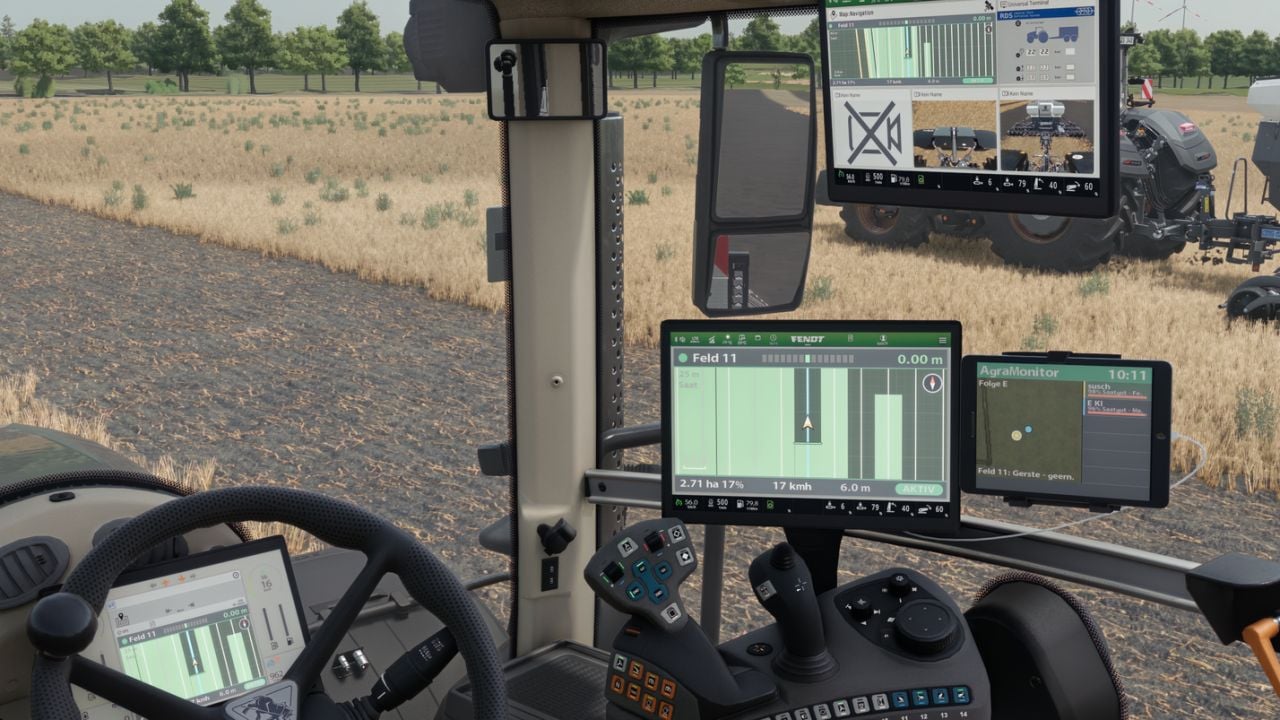
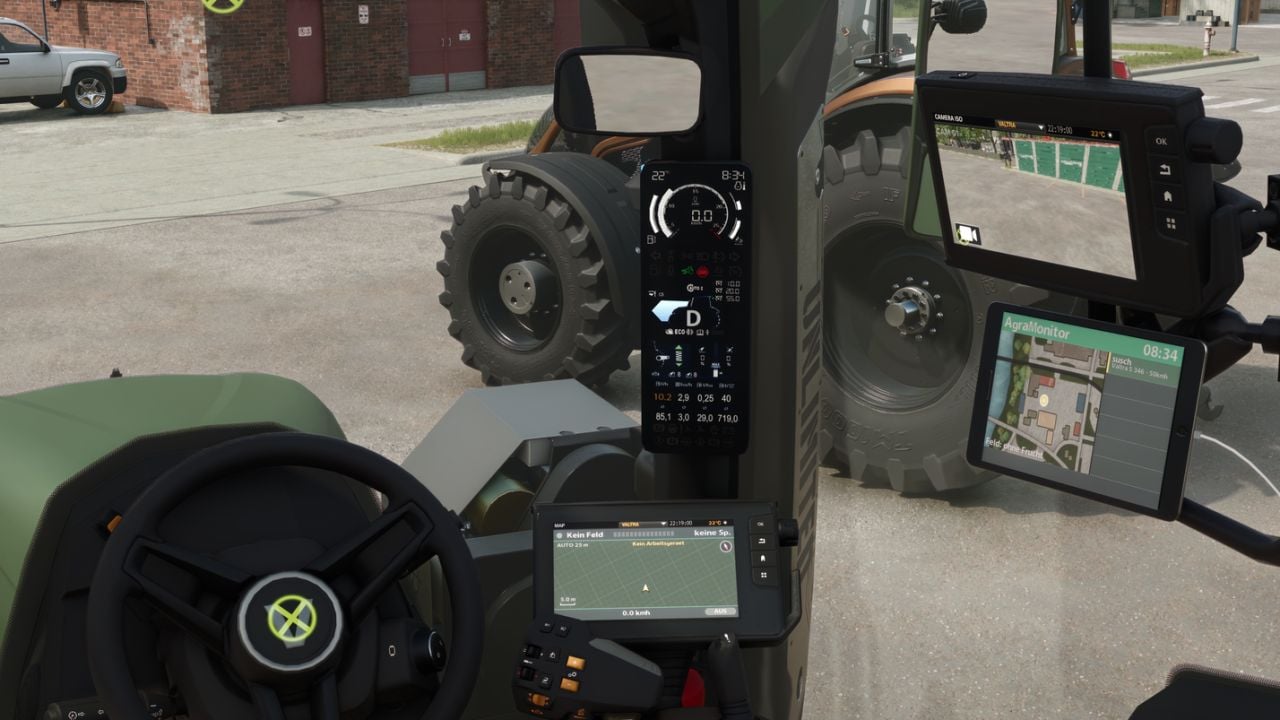
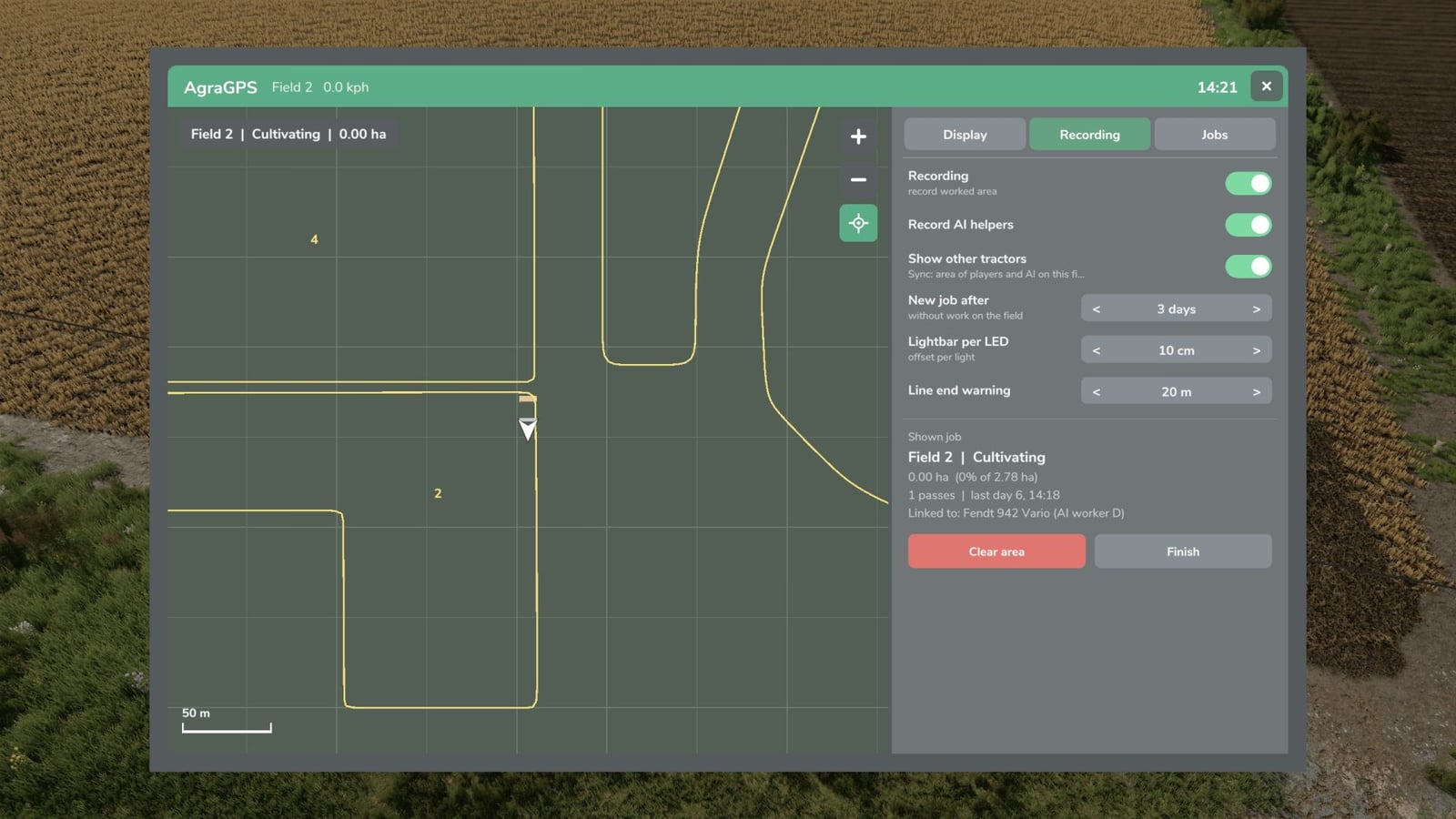
With AgraGPS, you get an optional GPS screen and a course management interface for Farming Simulator 2025. It gives you a clear way to follow and keep track of your work.
Features
- Drive with a full lane guidance screen that shows the guidance lines completely.
- The area your attached device works is shown and recorded. Leave the field or save the game, and the area can still be seen when you come back to continue the job.
- You can add an optional GPS terminal screen to the cabin.
- More than one screen is possible, and each screen can be used separately.
- On the display, you can see the worked area, field boundaries, and steering assist lines.
- Worked areas can be recorded while you are using the equipment.
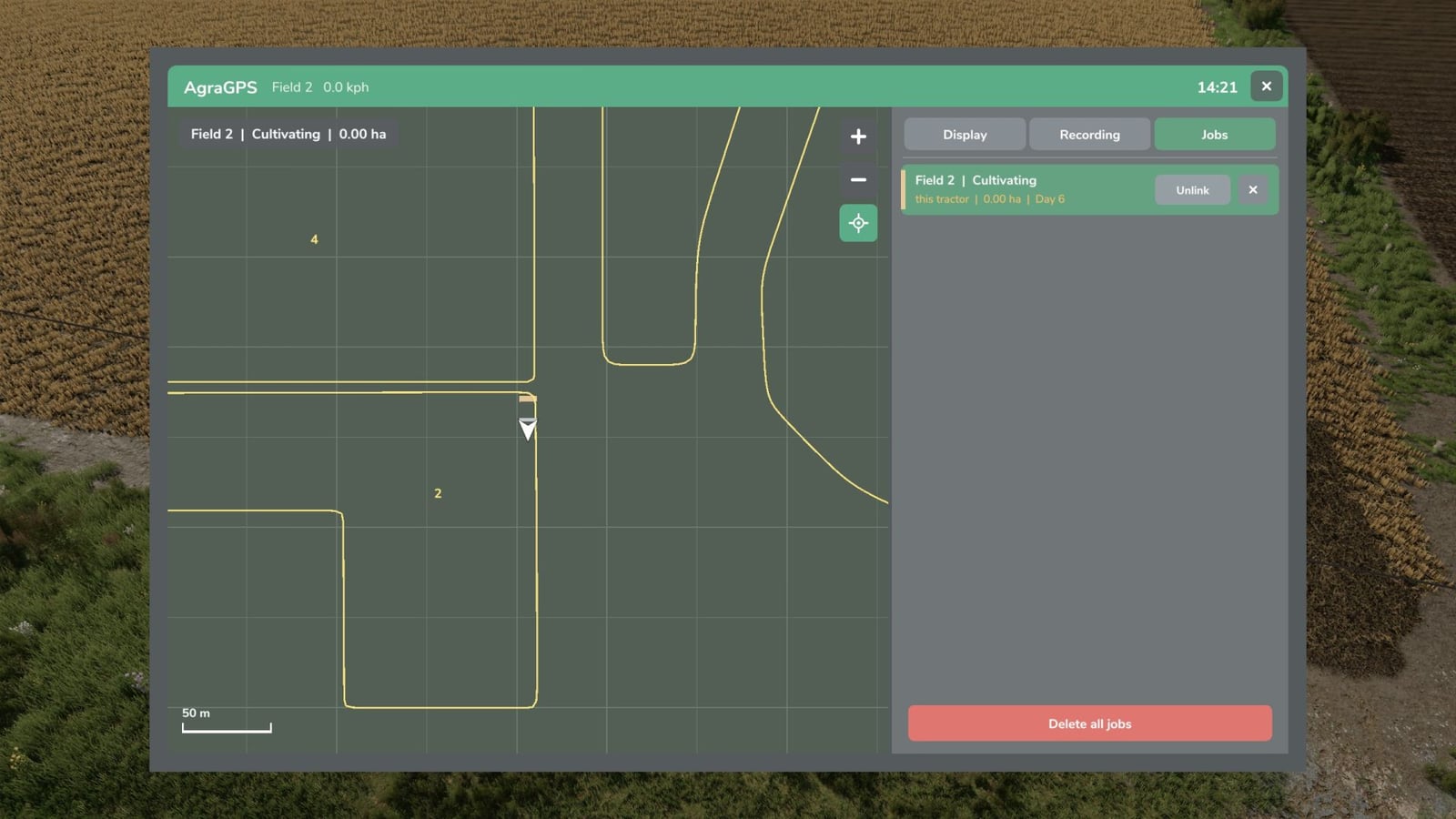
- Record work for each field and work type, with the recording linked to the tractor. Other tractors, AI helpers, and players in multiplayer can load it too.
- The terminal comes with an overview map and extensive settings. Open it using “Alt left + G”, or change that control in the control menu.
Changelog
V1.2.0.0
Fixes:
- The editing area at the window edge is now separated properly.
- A manual cleanup was carried out across the entire mod.
- Performance optimization has been added.
New:
- Courseplay integration added. Courseplay and the Courseplay GPS extension are required. Thanks to ItsLuggas for the suggestion.
- Have a CP course connected to the vehicle? That Courseplay course is used. Without one, you can use the standard lane guidance.
- When CP is active, the icon in the bottom-right corner shows Off, Ready, or Active. “CP” is now added to those Off/Ready/Active states.
- You can now use a 3D view on the cockpit screens and configure it in the GPS menu.
- The daytime 3D view includes a small sun with clouds, while the nighttime version includes a moon with stars.
V1.1.0.0
Fixes:
- Two combined fields are now saved as one recording entry. The name can then be Field 3 + Field 4, etc.
- The free space between combined fields is now part of the recording as well.
- Screen font sizes that became too large have been fixed, so the attributes do not become unreadable.
- The sync function for two tractors in one field caused issues, so it has been removed.
New:
- Vehicles with no screen or external view player can now use a GPS window. Adjust it through the GPS menu just like the screens. The window opens with “Alt left + H”, and the control can be changed in the control menu.
- Use the GPS menu to dock the GPS window left, right, top, or bottom, then resize it there too.
- Choose personalized colors for the GPS screen and window through the GPS menu. The chosen colors are linked to the vehicle type.
- The recording of worked areas has been changed. Two tractors share a recording only when both have that same recording loaded.
- Turn on AI helper recording separately for each helper.
- Automatic deletion after X days is no longer used.
- The screen works without text and LED strip attributes now. Set the attribute value “onlyMapLayer” to “true” in the
XMLfile for that setup.
Note on the recording process:
- A field recording always begins, whatever task is being done in the field, even when guidance is not active.
- Start a task in the field and recording starts automatically, linking your vehicle to the recording.
- If an AI helper or another player is taking on the same field task, that player must load the existing recording. The work from both vehicles will then be recorded there.
- Do not load the recording, and a new recording starts for the AI helper or other player, even if the task is the same.
- After the field task is finished, complete it in the GPS menu. The task is saved and can be opened later to check whether the whole area has been worked.
- Once an area is complete, it cannot be loaded anymore. You can only view or delete it.
- Any incomplete area can be loaded into a vehicle whenever needed.