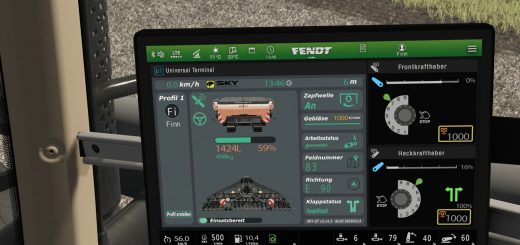
With Tramline Pilot, you plan tramlines for every field, see them marked in the field, and keep driving, turning, spraying or spreading on those lines only. The mod is based on Control Traffic Farming, remembers the same tramlines from year to year, and links up with AutoDrive for refilling.
You do not need Precision Farming.
Put FS25_TramlineSystem.zip into Documents/My Games/FarmingSimulator2025/mods. Then, when you load your savegame, tick Tramline Pilot in the mod list.
Features
- Stand in the field and hit Right Ctrl+M.
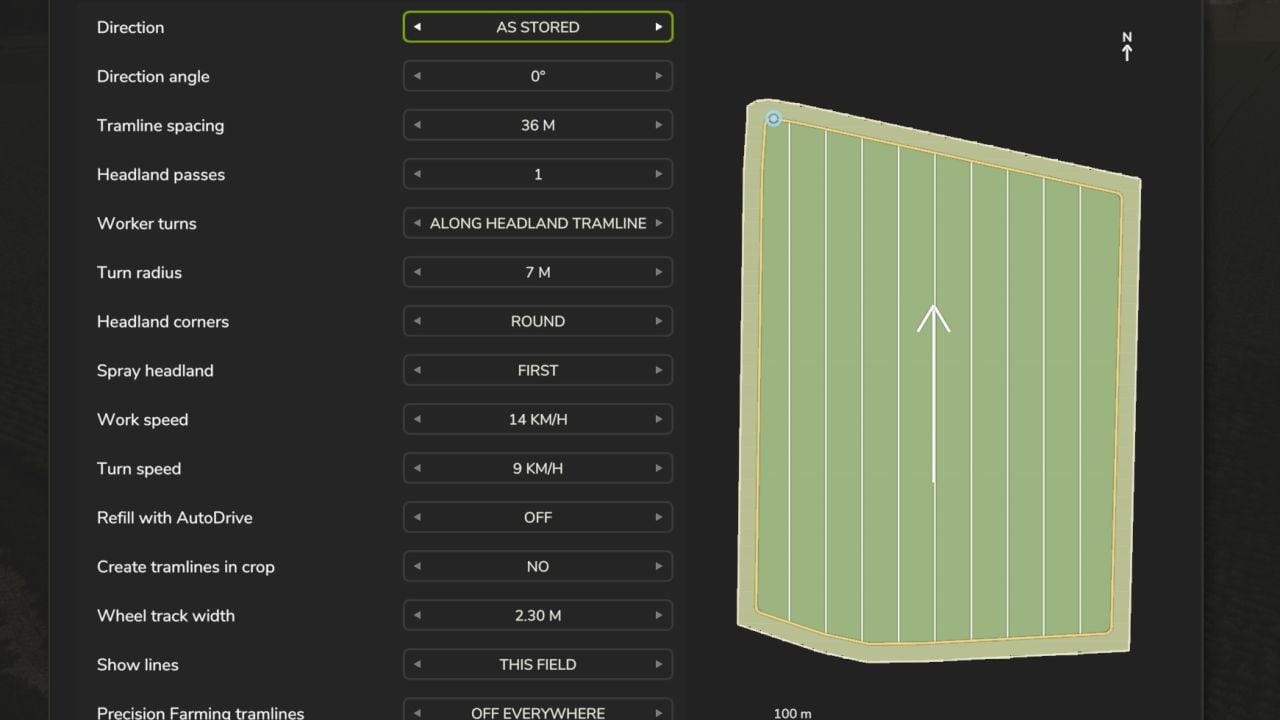
- Match Tramline spacing to your boom width or spreading width.
- Choose a Direction and how many Headland passes you want.
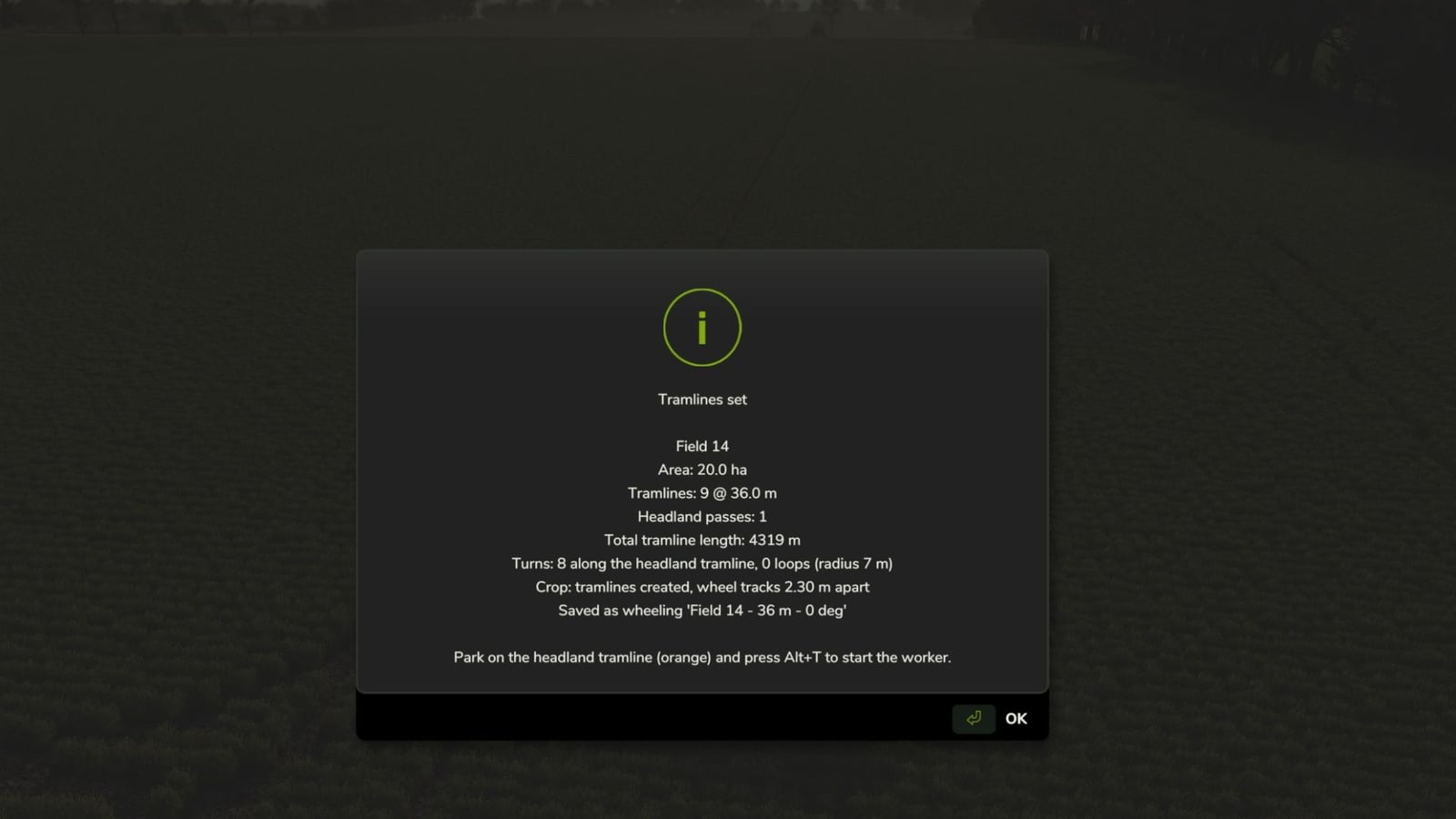
- Hit Enter and generate the tramlines.
- Fill the sprayer and move onto the amber headland tramline.
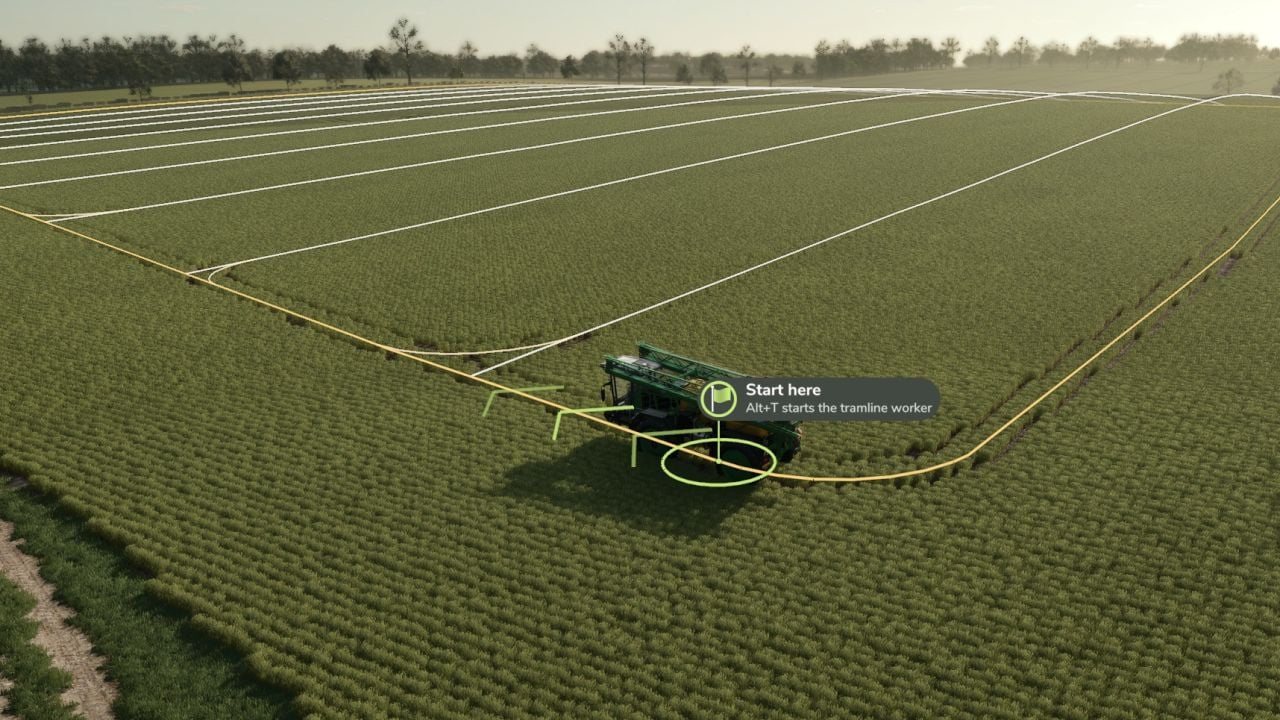
- Once the green Start here flag is visible, press Alt+T.
- Press Alt+T or Alt+Q whenever you want to stop.
- You can use the longest edge, vehicle heading, A – B points with Alt+1 and Alt+2, an angle, or as stored for Direction.
- Worker turns can follow the headland tramline, or use loops where they fit.
- For Headland corners, choose round, or back into corners for self-propelled and mounted sprayers.
- Spray headland can be first, last or skip.
- Work speed and Turn speed apply while spraying and turning.
- AutoDrive refilling can be on or off.
- For crop tramlines, select no, wheel tracks or a full lane.
- Show lines offers off, this field or all fields.
- Precision Farming tramlines offers on, off on tramline fields, or off everywhere.
- Enter generates, Space opens Saved wheelings, Clear field removes the layout, and Esc takes you back.
- Use Alt+4 to make the lines appear or disappear.
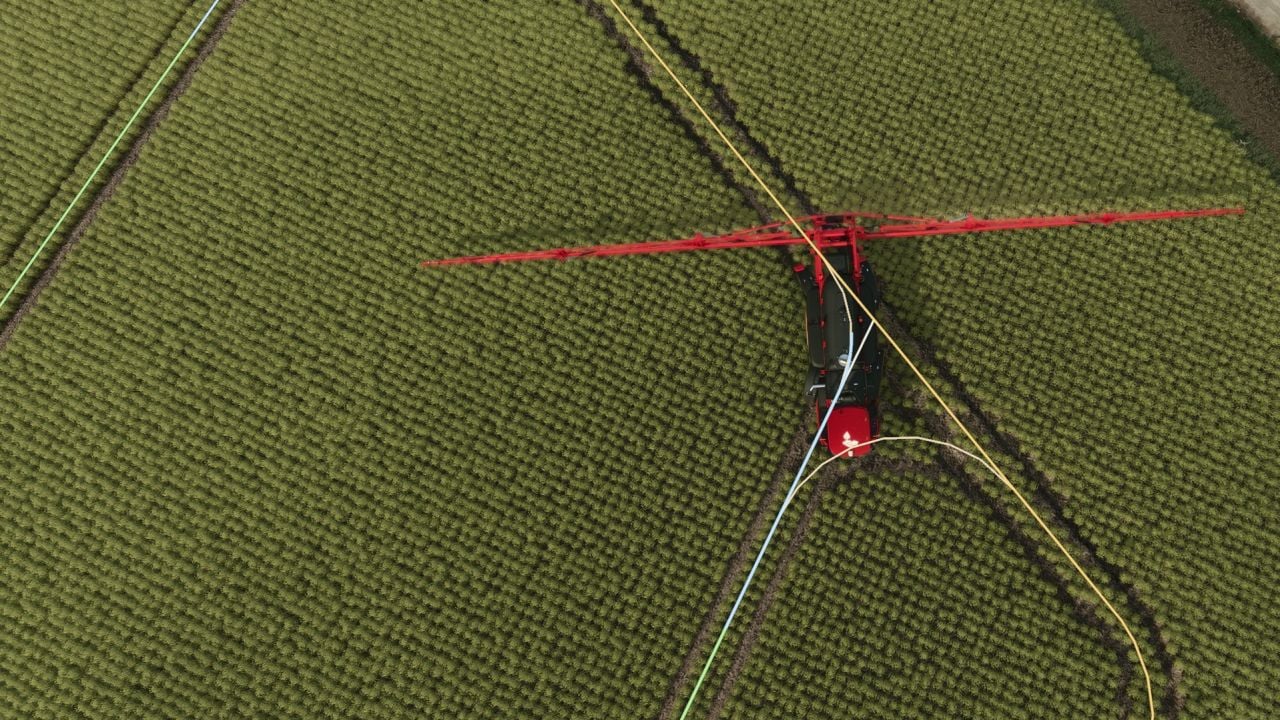
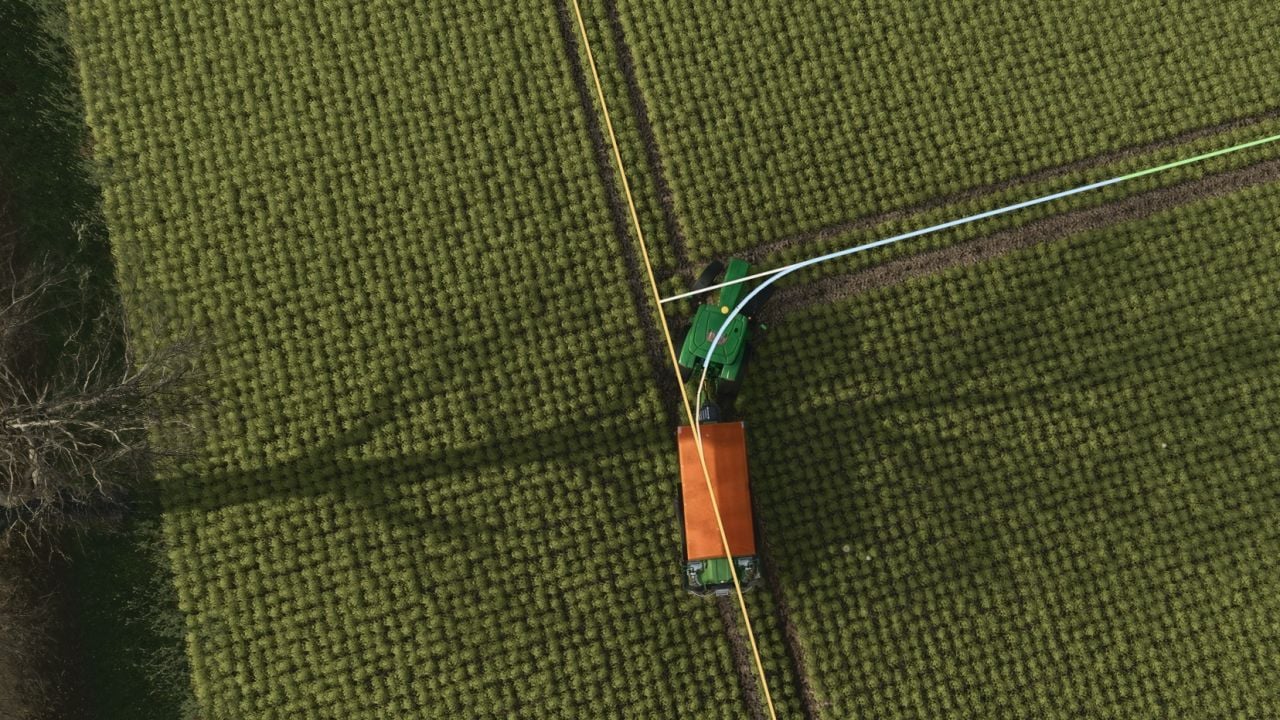
- White lines are the main tramlines. Amber lines are the headland tramlines.
- The next spraying route is green. Blue means the worker is driving with the boom off.
- The green flag shows the course start, while the chequered flag shows the finish.
- Last sprayed here marks the place where an unfinished job stopped.
- Field gate marks the spot where AutoDrive takes over for a refill.
- Drive onto a tramline. For a new job, use the headland tramline, or start from a main tramline.
- Press Alt+T and the worker covers the field without leaving the tramlines.
- Press Alt+T or Alt+Q to stop. Alt+Q also works while you are outside the vehicle.
- Want to continue? Press Alt+T again. If you are at the stopping spot, it continues there. Somewhere else, choose Drive back there, Carry on from here or New job.
- Back into corners makes the sprayer reverse into sharp headland corners, so none are missed. It does not apply to trailed sprayers.
- Save the game and the unfinished job stays there for another day.
- Press Generate and that layout is saved.
- Next season, open the field menu and press Space to open Saved wheelings.
- Choose the layout you want and press Generate.
- Saved wheelings are usable in every savegame on the same map.
- Choose Wheel tracks for Create tramlines in crop, giving two tracks 2 m apart, or choose Full lane, 3 m. Press Generate, and the crop is removed along the tramlines straight away.
- Set Precision Farming tramlines to Off on tramline fields or Off everywhere, so Precision Farming’s seeders do not create their own tramlines.
Specifications
- Tramline spacing: 6-60 m.
- Headland passes: 0-4 tramlines around the field edge.
- Turn radius: 4-15 m.
- Wheel track width: 1.50-4.00 m, measured between the sprayer’s wheel centres. The width of the machine you are sitting in is marked “your vehicle”. 2m is a good start.
- Wheel tracks: two tracks 2 m apart.
- Full lane: 3 m.
Refilling with AutoDrive
Set it up once on each field:
- Put an AutoDrive marker at the field edge. That marker is the field gate.
- Set the marker as the sprayer’s AutoDrive target.
- Make the refill point the sprayer’s 2nd target.
- Open the menu and turn Refill with AutoDrive to On.
Here is what happens when the tank runs empty:
- The worker folds up and follows the tramlines to the gate.
- AutoDrive drives it to refill, then brings it back.
- The worker returns to the place where it ran out and carries on.
If AutoDrive stops on the trip, start AutoDrive again or press Alt+T on the field.
Keys
- Right Ctrl+M: setup menu
- Alt+T: start or stop the worker
- Alt+Q: stop the worker
- Alt+4: show or hide the lines
- Alt+1 / Alt+2: set points A and B
- Handy console commands:
tlNewJobforgets an unfinished job,tlRefillrefills now,tlPaintcreates the tramlines in the crop, andtlWheelings/tlLoad/tlSavehandle saved wheelings.
If something goes wrong
- “Drive onto the headland tramline”: you are off the tramlines, so drive to the amber marker.
- It will not back into corners: you need a self-propelled or mounted sprayer, a headland pass and Back into corners.
- Refill does not start: check that the AutoDrive target is a marker on the field edge and that the 2nd target is the refill point.
- The unfinished job has gone: generating another layout drops the unfinished job.
- No lines: press Alt+4.
- It cannot follow the corners: change Turn radius to your sprayer’s turning circle.
- Gaps in the wheel tracks: set Create tramlines in crop to Wheel tracks and press Generate again.
ISSUES: https://github.com/FS-MModding/FS25_TramlinePilot
Changelog
- V1.1.0.0
New – Headland direction: the setup menu gets a new option, and you need at least one headland pass. Select As the vehicle faces, Clockwise or Anticlockwise.
Pick Clockwise or Anticlockwise and the worker keeps going around the headland that way. At the end of the headland it turns into the tramlines, then turns back onto the headland, with one curve for each instead of two.
The tramlines still run up and down. The worker turns one way at one end and the other way at the other end.
Back into corners has the worker reverse into every corner from the same side. That means each corner uses one corner tramline instead of two.
If the worker faces the wrong way, it stays put. The start marker says “Turn round” and tells you which way the field goes.
Saved wheelings also remember the direction.
Fixes – Tramlines made in the crop no longer turn into another crop. On maps with extra crops, they appeared as the last crop in the list, onion, for example, on the crop map (GitHub issue #1).
Other – The version number is now 1.1.0.0. The Changelog, README and tutorial on GitHub were updated for the headland direction. - V1.0.0.1
https://github.com/FS-MModding/FS25_TramlinePilot
Fixed – Stopping course
Added – user logging