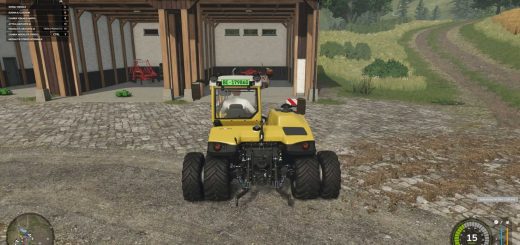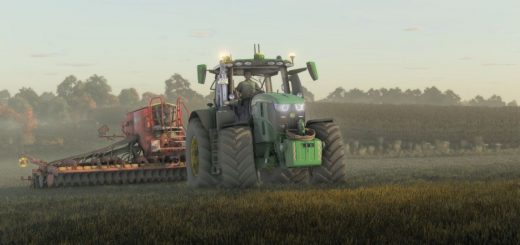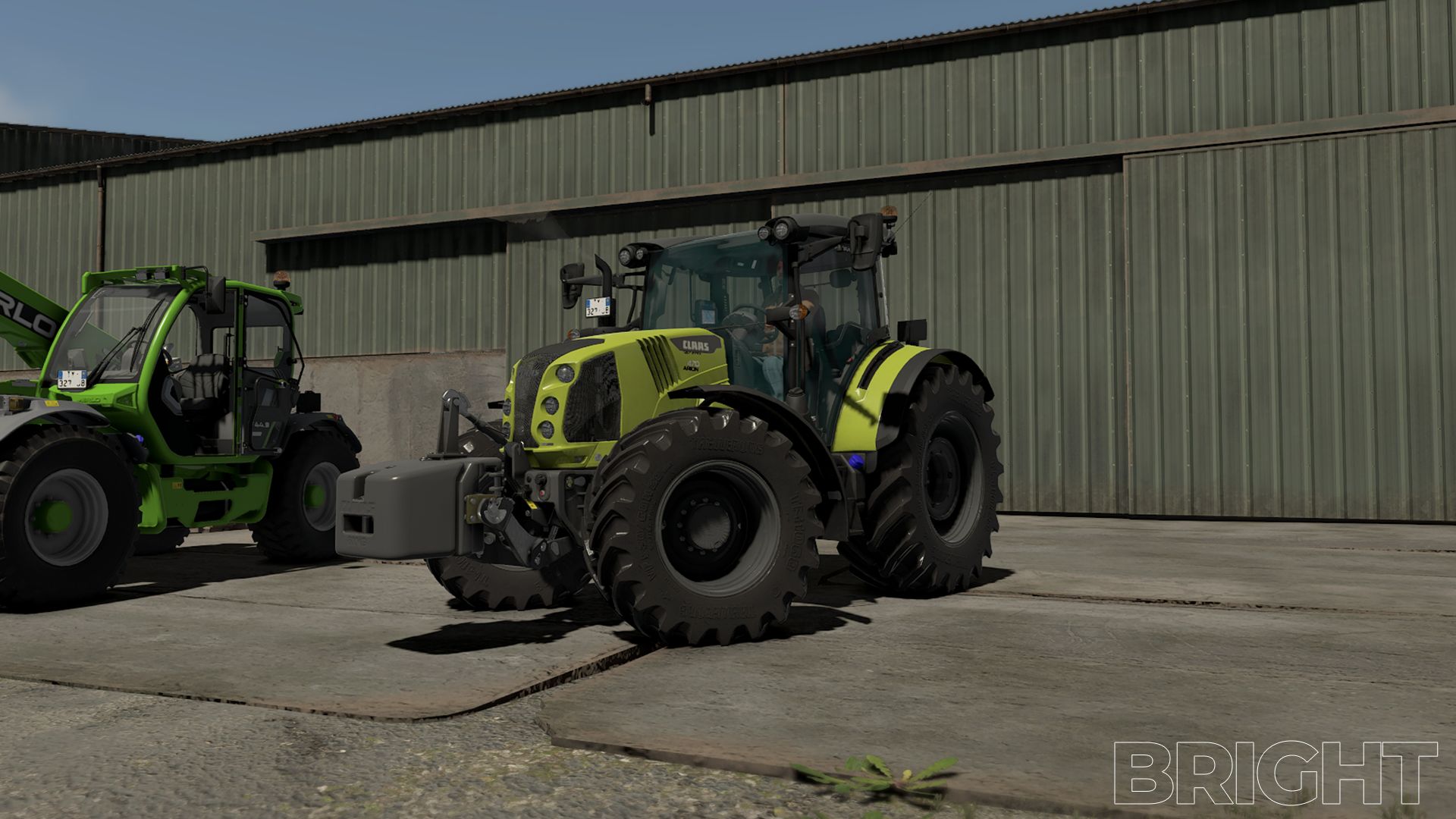
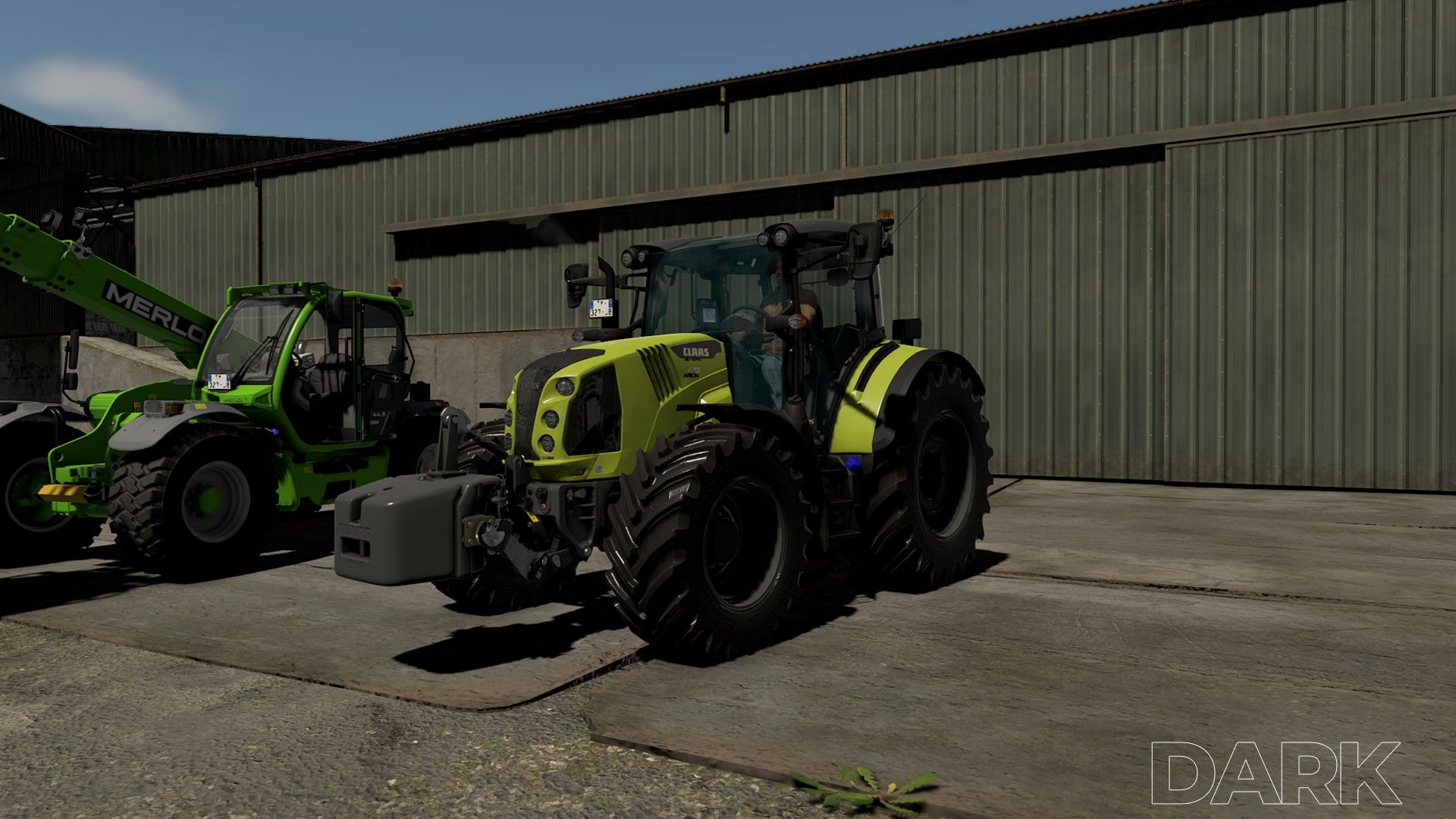
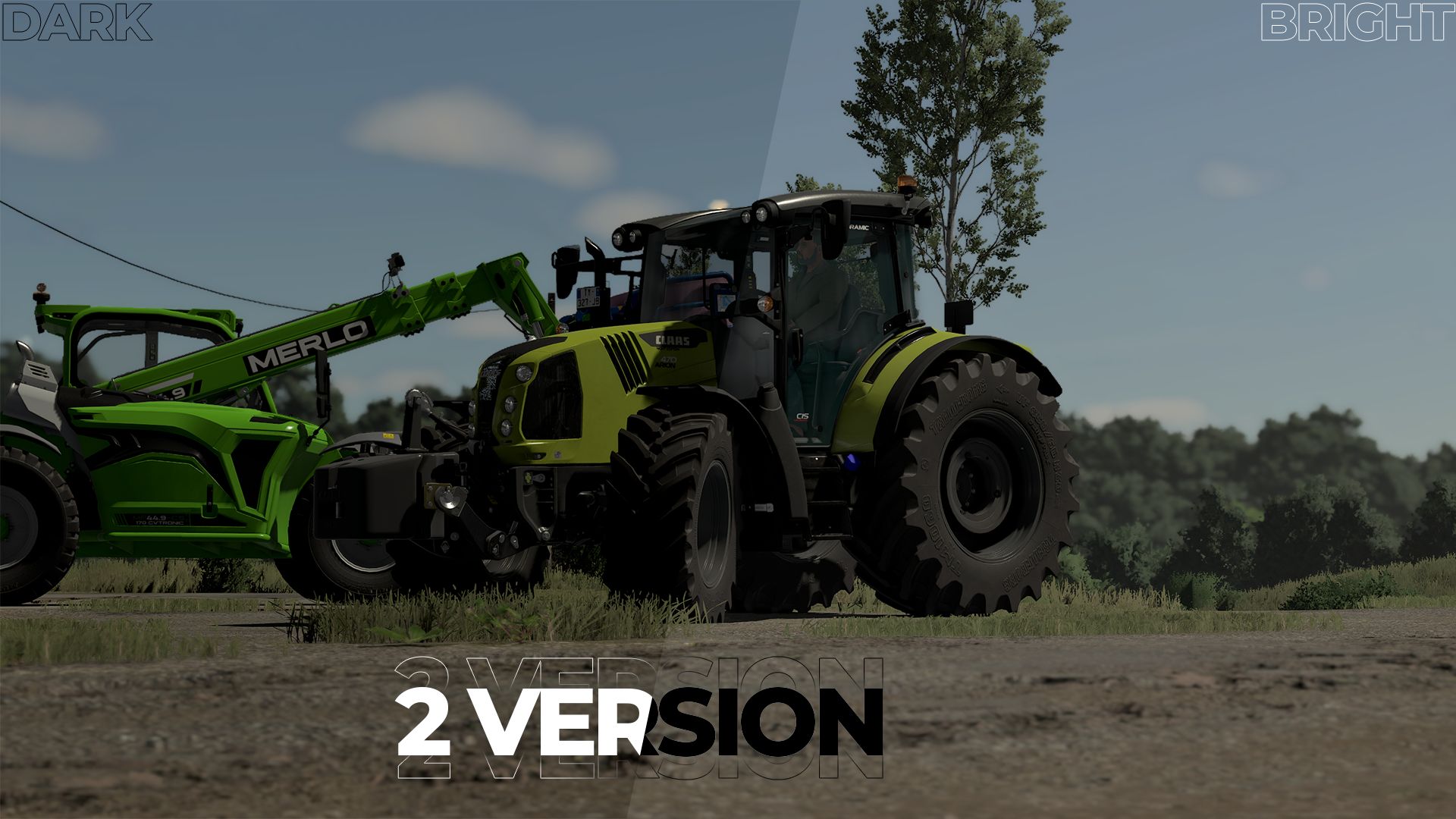
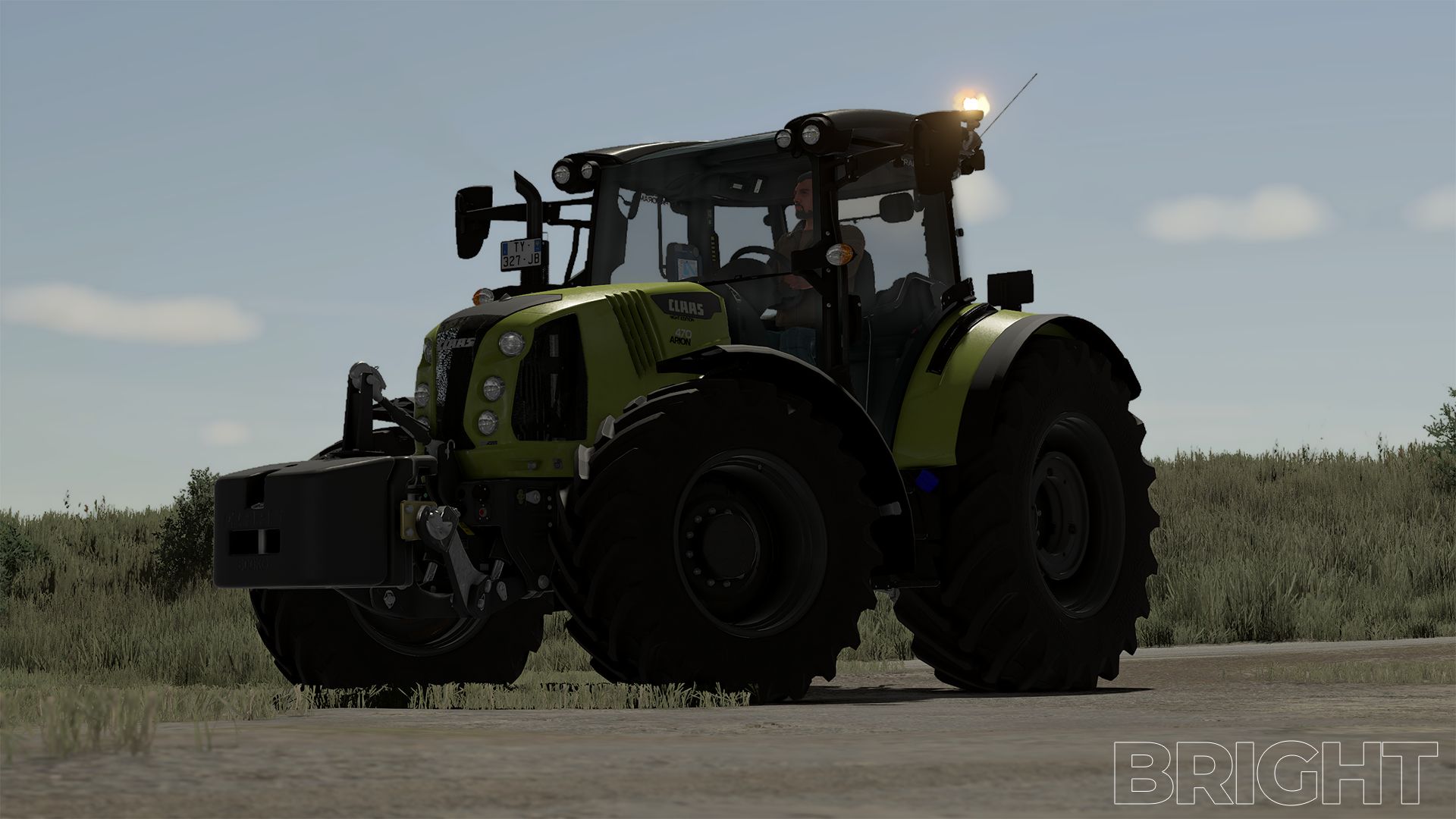
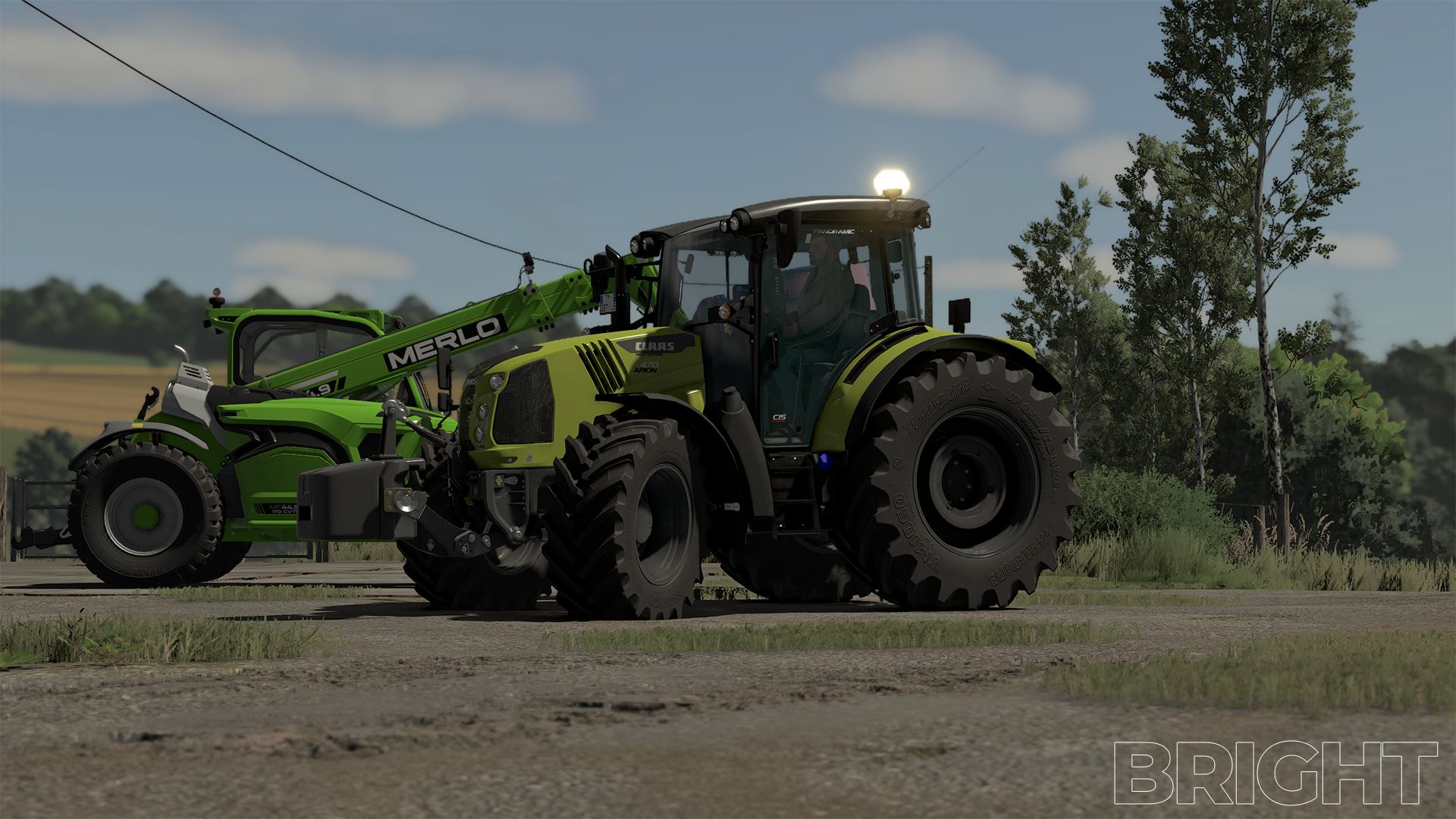
– Installing the JVN shader is relatively easy.
– The included files simply need to be copied into the correct folders.
– The ReShade preset file JVN_Cinematic_Agriculture.ini goes into the folder:
– Farming Simulator 25×64
– The existing ReShade installation must also be located in the x64 folder.
– The files environment.xml, ColorgradingNight.xml and colorgrading.xml go into the folder:
– Farming Simulator 25datamapsmapUSconfig
– Existing files may need to be replaced.
– It’s best to create a backup of the original files beforehand, so you can switch back to the standard graphics at any time.
– The “Additional Game Settings” mod is also required. After installation, you will find it at:
– Settings → Additional settings → Non-standard lighting
– The appropriate setting. For the intended look, the non-standard lighting should be set to Riverbend Springs.
– I myself play at a resolution of 2560 × 1440 (WQHD) and maximum graphics settings.
– For non-standard lighting, I use Riverbend Springs, and for the ReShade preset, I use the JVN Natural Vision.ini.
– The shader may look slightly different at other resolutions, graphics settings, or maps.
– Afterwards, you can start Farming Simulator 25 as normal and select the JVN Natural Vision.ini preset in ReShade.
– The shader is tailored to my personal look and combines a customized environment, custom day and night color grading, and ReShade.
– Depending on the monitor, brightness, resolution, map, weather and graphics settings, colors and lighting may vary slightly.
– Important: For the intended look, both the supplied XML files and the non-standard Riverbend Springs lighting should be used.
– Using only the ReShade file will not result in an exactly identical look.