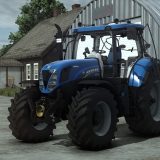
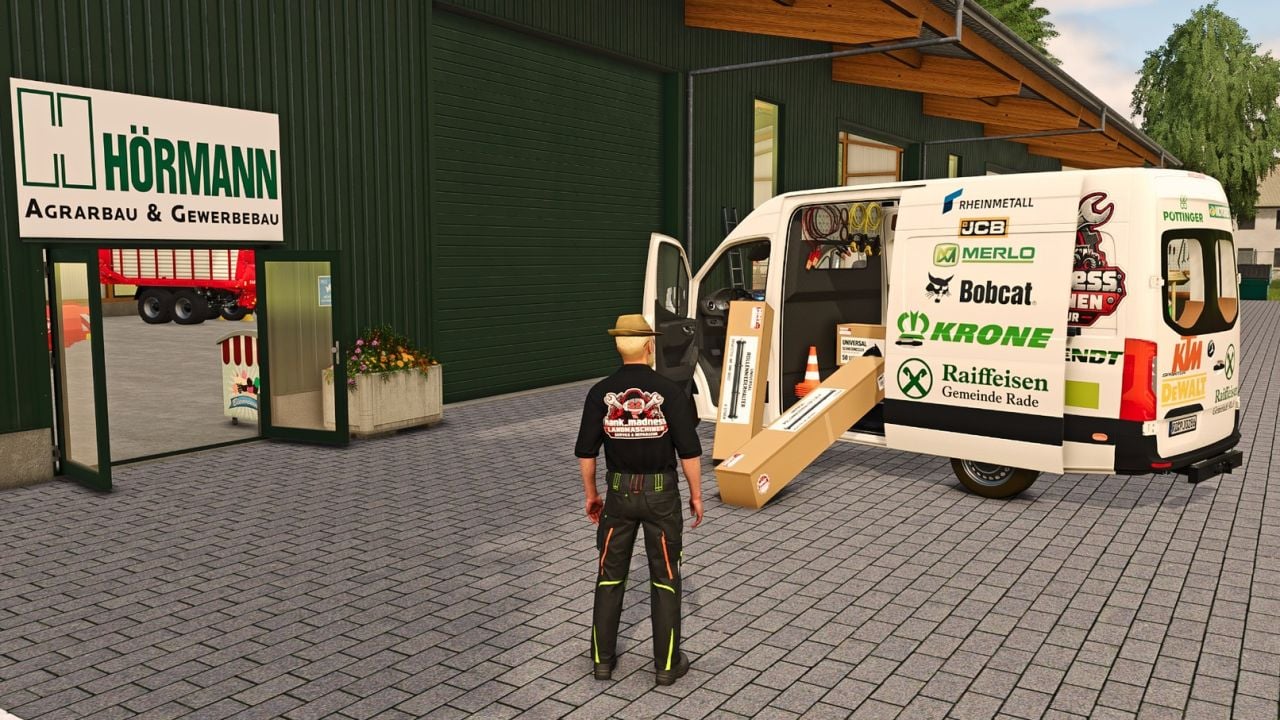
With Pickup Plus, your FS25 balers and forage wagons can get load-based blockages, wear and purchasable spare parts.
Features
- While you pick up material, the knives, pickup tines and hold-down rollers wear down. Push the speed or material throughput higher and the load goes up too. Once more than 70% of the pickup capacity is used, the machine starts slowing down more and more. A blockage stops material pickup until you clear it.
- Head to the pause menu, open General Settings → Pickup Plus and pick the operating mode.
- Turn the mod functions off and they pause. Your equipment then runs with the normal FS25 functions.
- Simple Mode keeps players and helpers free from blockages and clears any blockages already there. Load, load limit, wear and spare-part maintenance still stay active.
- This option turns on every mod function. If a blockage happens, the field worker finishes its task and tells you the reason. Clear the blockage, then restart it.
- Your chosen operating mode is saved in the savegame. In multiplayer, the host or server administrator sets the mode.
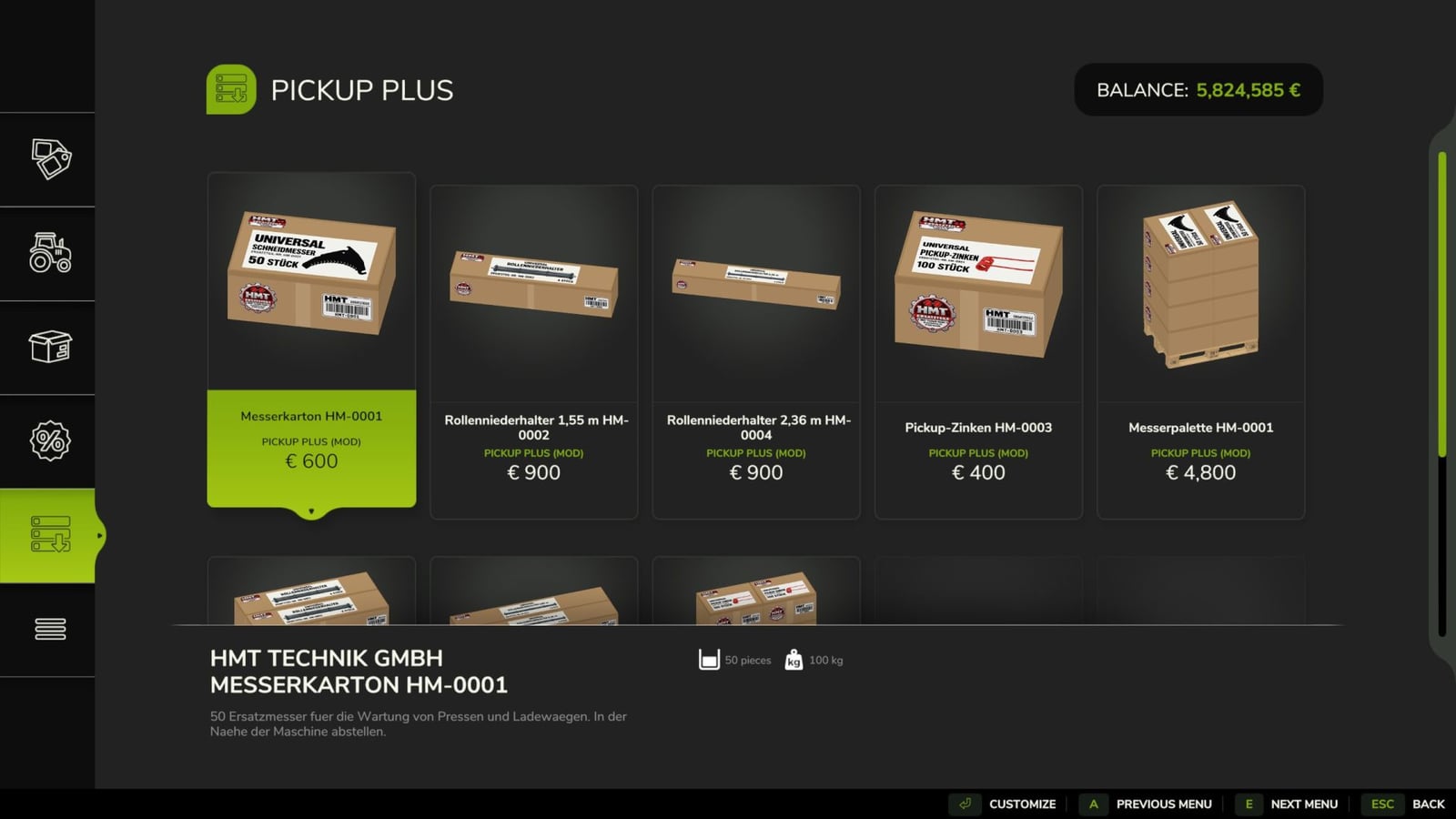
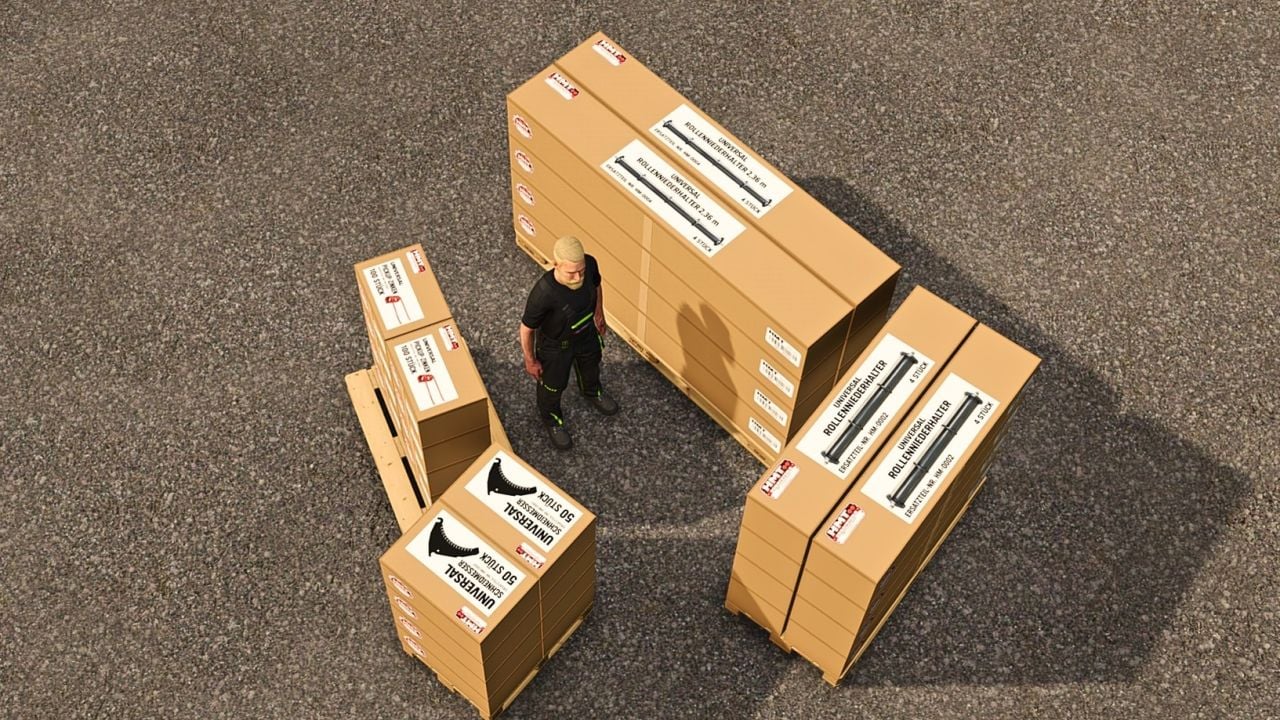
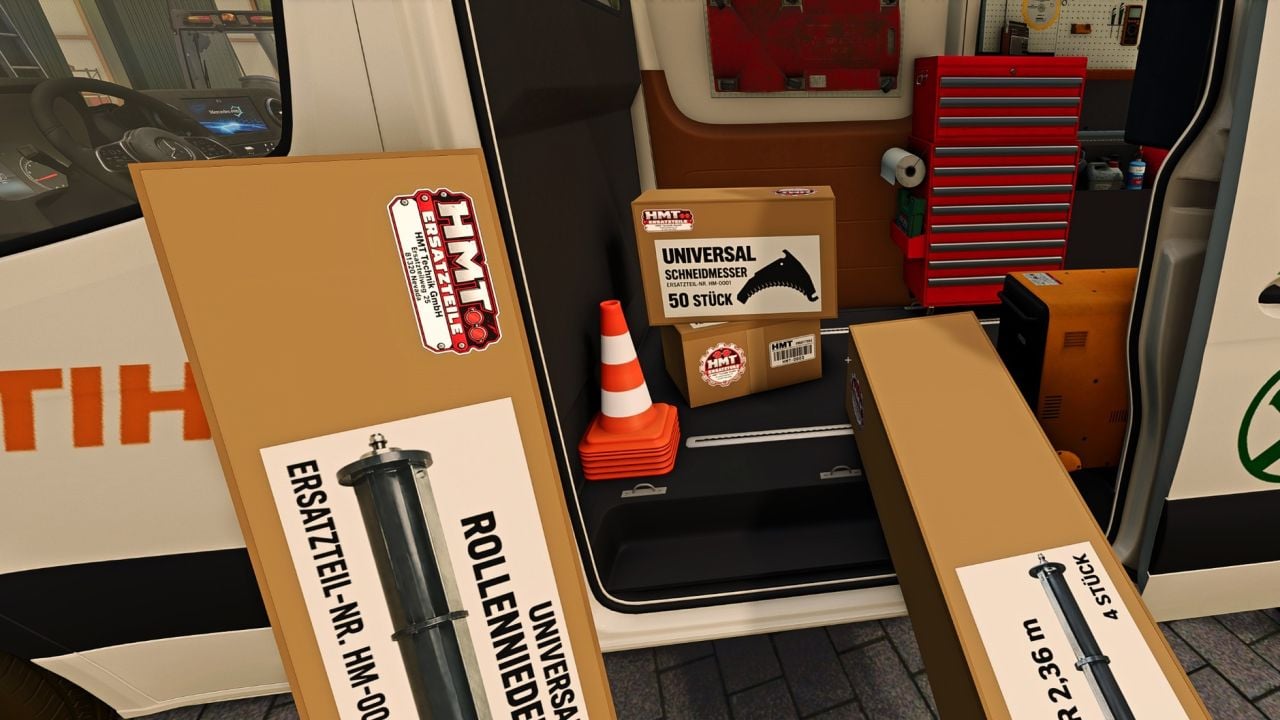
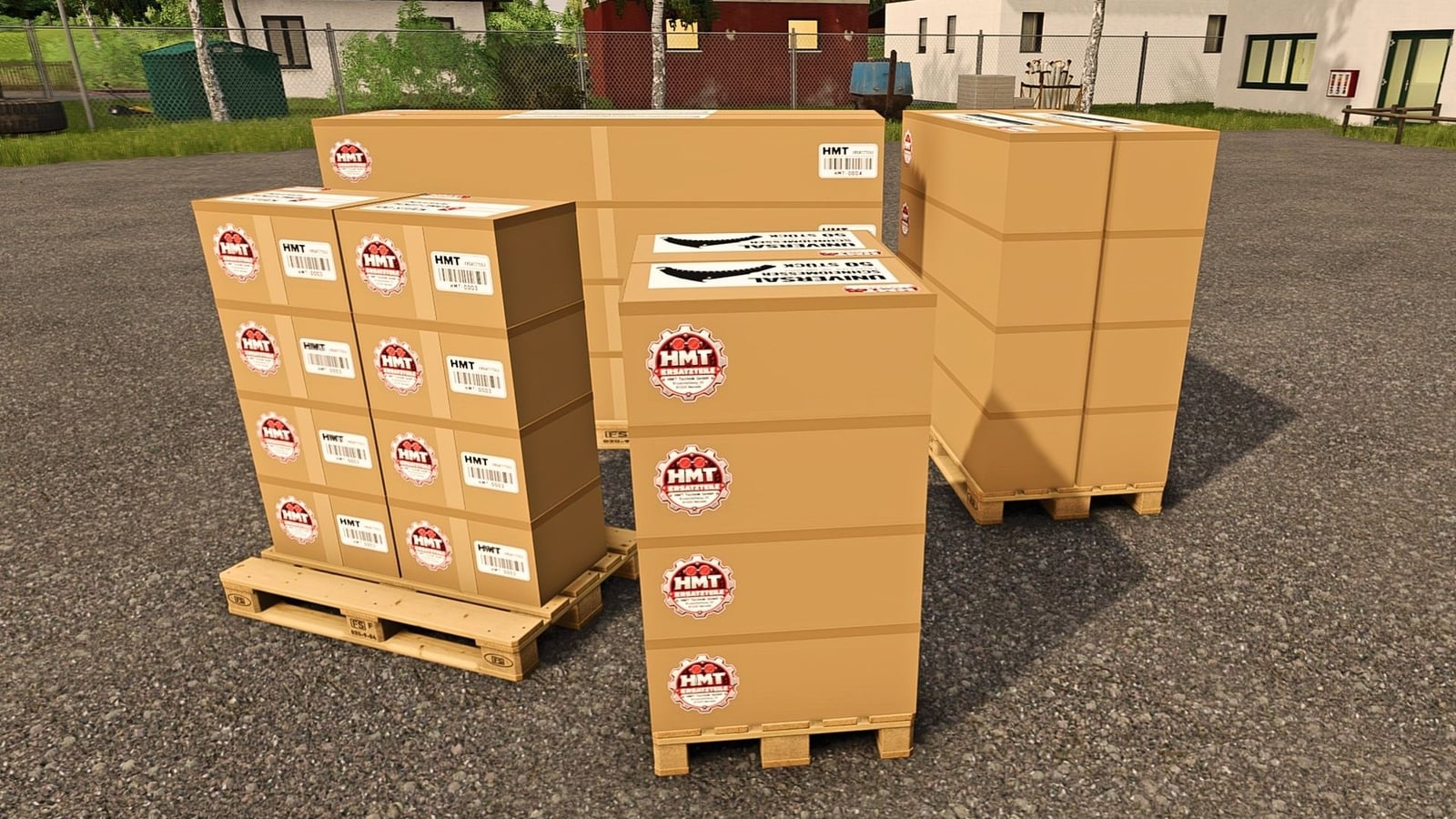
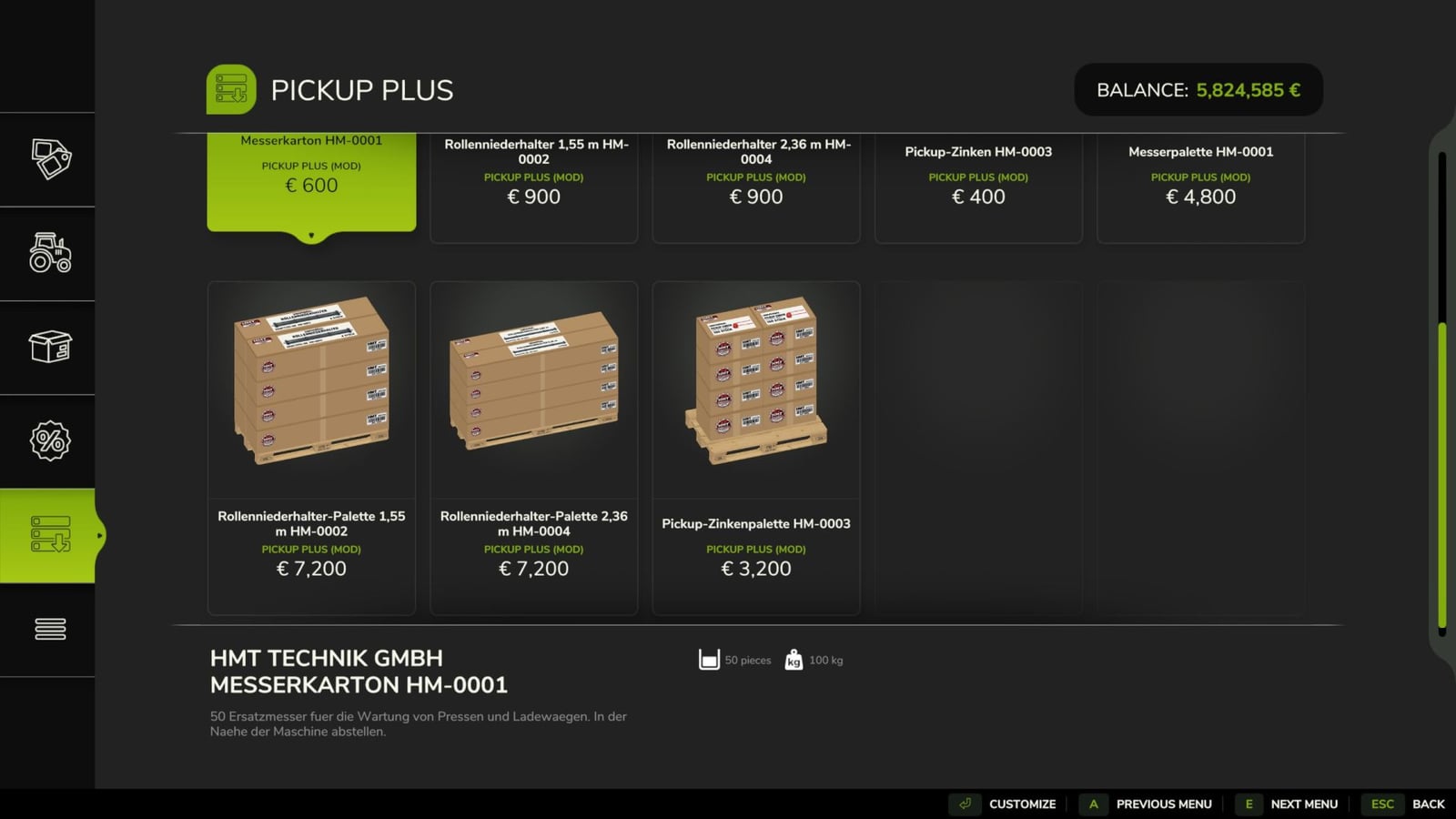
- Look under HMT Spare Parts for the matching parts. Boxes come with 50 knives, 100 pickup tines or four roller clamps. There are two versions of the roller clamps. Buy multiple boxes in one go, or use pallets when you need larger quantities.
- First stop the baler or forage wagon and switch it off. The tractor engine can keep running. By default, put boxes or pallets from your farm no farther than five metres away.
- As soon as a suitable spare part is available, partial maintenance can begin. Need ten parts but have five, and those five get installed. The final report tells you how many spare parts are still required.
- Clearing a pallet takes eight seconds and does not use spare parts. Part replacement takes 20 seconds. After it finishes successfully, the parts are consumed. Boxes and pallets used only partly keep whatever contents remain.
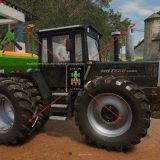
- The HUD lets you see the workload and component status. For your personal HUD, choose a large or small font size.
- Toggle the HUD with Left Ctrl + left Alt + 3.
- Use Left Ctrl + left Alt + 4 to toggle repositioning mode. Hold the left mouse button and drag the HUD where you want it. Camera and zoom inputs are locked during repositioning.
- With Left Ctrl + left Alt + 5, switch the HUD size between 50, 25, 20 and 75% of the speedometer width.
- Ctrl + Alt + Caps Lock starts or ends maintenance if you have not saved a custom maintenance key.
- Under Options → Controls, you can freely assign the HUD actions and maintenance functions. Save a keyboard or controller binding for maintenance and it replaces the default Caps Lock binding.